Dashboard & Workspaces
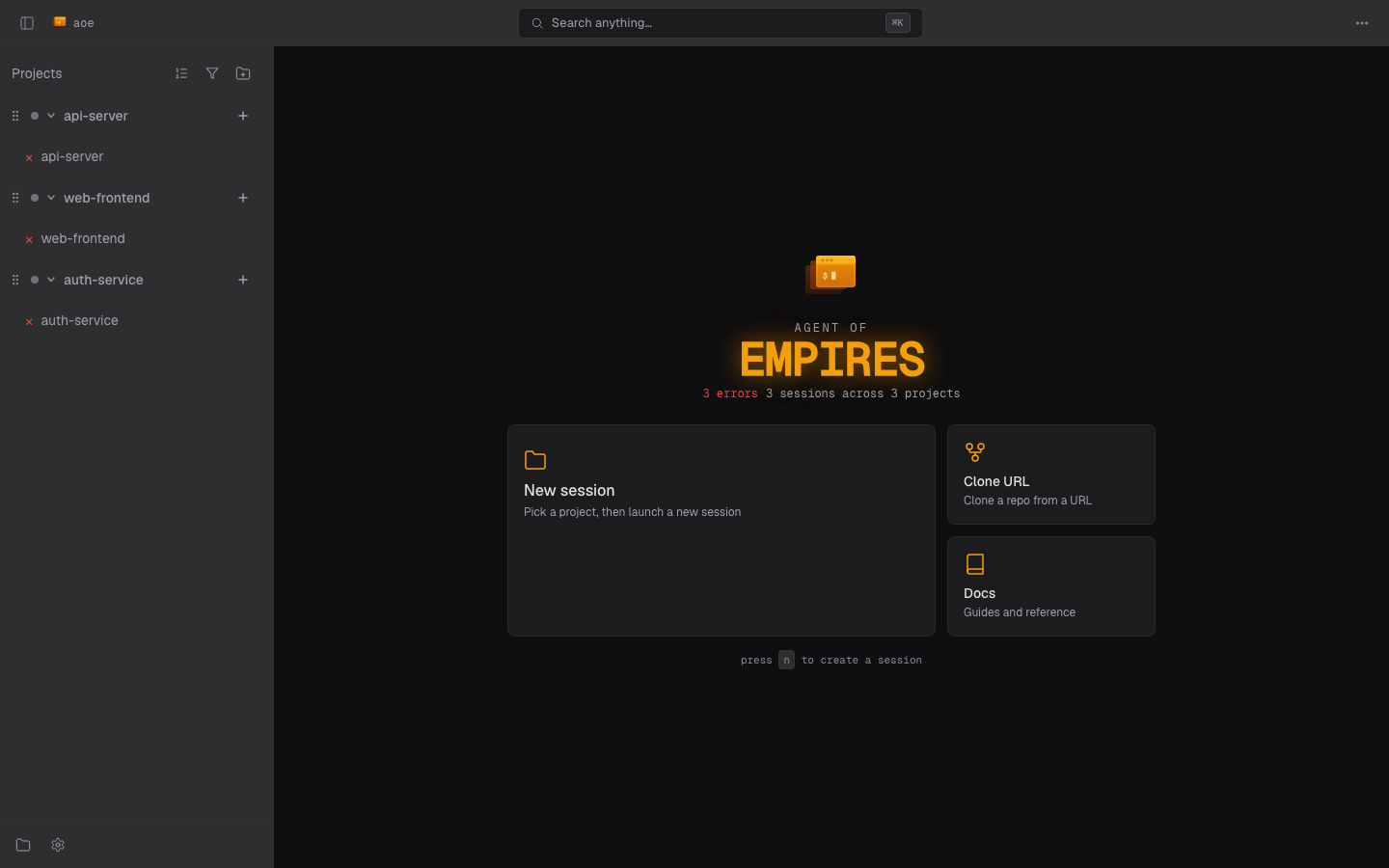
The dashboard is the home screen of the web app: a workspace sidebar on the left, the active session in the main pane, and a top bar with global actions. For running the server and its auth, see the Web Dashboard overview.
Layout
- Workspace sidebar lists every session with a live status glyph, grouped by repo. On phones it collapses behind a top-bar toggle.
- Main pane shows the selected session: the agent terminal or structured view, with the diff and paired terminal reachable from the top bar.
- Top bar carries the command palette, the right-panel picker, and the overflow menu.
- Home screen (no session selected) shows a count of running, waiting, and error sessions.
Creating a session
The New session wizard is one screen of one-line rows, like the TUI dialog; a row with a chevron opens its details in a panel:
- Project: pick the working directory from the Recent tab (saved projects first, then the directories of recent sessions), browse for one, clone a URL, or start a scratch session with no path.
- Title: auto-slugifies into a worktree branch name unless you edit the branch.
- Agent: the tool, plus instructions, command override, and extra args.
- Structured, Auto-approve, Worktree, and Sandbox switches; the Worktree and Sandbox rows open their branch, base, image, and env options.
Choosing a profile (the Profile row, shown when there is more than one) seeds these defaults; switching profiles after you have edited a field asks first. A create that runs on_create hooks shows their output while it runs, and Continue in background closes the wizard and reports the result when it finishes.
A plain New session opens on the project you launched last; pick another from Recent or Browse to change it.
Command palette
The palette (top-bar button or keyboard shortcut) is a fuzzy launcher for global actions: jump to a session, open settings, start a session, toggle the right panel.
When an embedded agent or paired terminal, or the structured-session composer, has keyboard focus, press Ctrl+Q to return focus to the active session in the sidebar. Then press a to move to the next session needing attention; a works when a terminal or text field is not focused.
With a session row focused, use ↑ and ↓ to move through visible rows without opening one; press Enter to open the focused row.
Individual settings appear under Settings: a writable toggle flips inline with a toast, while read-only servers and settings needing elevation open the settings view instead. The Settings header has its own search box (the TUI settings screen uses /) that filters across every tab.
First-run onboarding
The first time you open the dashboard, a Choose your theme card appears; picking one applies it live and saves it to your default profile. After it, an interactive walkthrough highlights the command bar, sidebar, session creation, settings, and, inside a session, the diff panel and composer. Two steps open Settings for you (Worktree and Plugins).
Completing or skipping it records app_state.has_seen_web_tour on the server (in state.toml, see the configuration reference), so it does not relaunch on another device. Replay it from the overflow menu’s Show tutorial; it does not auto-launch on touch devices. Both the theme card and the tour are skipped in read-only mode.
Sorting and grouping
By default the sidebar keeps your manual order. Drag a row (press and hold) to move it; that order syncs across browsers via workspace-ordering.json. Drag a project or group header to reorder whole groups, which is per-browser and disabled while a filter or a computed sort is active.
The sort picker offers three modes, and drag is available only in the first:
- Manual (default).
- Recent activity: by the most recent of
last_accessed_at,idle_entered_at, andcreated_atacross the workspace’s sessions. - Attention: sessions needing a human first, mirroring the TUI. Ranks by status (Waiting, Error, Idle, Unknown, Running, Stopped, transient last), floats sessions the
attention-urgenthook flagged above non-urgent rows in their tier, favorites first within a rank, then most recent activity. A session with a pluginrow-columnentry tonedwarnordangerranks at least as high as Error (Waiting stays ahead), and counts toward the attention badges and the jump-to-next shortcut like a Waiting or Error session. Archived, snoozed, and trashed sessions never count.
A grouping toggle next to it cycles By repo (default), By group (the group set in the TUI rename dialog, with aoe group move, or from the row’s Edit group menu; ungrouped sessions sit in a bucket at the bottom), and By repo and group (repo headers with groups nested inside). Group paths use / for hierarchy. Collapse state is tracked per axis, and the sort and grouping choices are per-browser. The Multi-repo and Scratch groups default to the bottom.
Triage: pin, archive, snooze
Right-click (long-press on touch) a session row:
- Pin floats the workspace to the top in every sort mode. Pin is web-only and distinct from the favorite mark. Favorites keep their
✦marker in both normal and compact sidebars. - Archive tears down every tmux session the workspace owns (pass
kill_pane: falsein the API, or--no-killon the CLI, to skip that) and shuts down the structured-view worker, then sinks the row into the collapsible “Snoozed & archived” footer. An archived session never starts or resumes, whether from a message, Start, attaching, or a daemon restart; unarchive it first. - Snooze sinks the row for a chosen duration (1h through 1w); it wakes when the timer expires, or early if you send a message.
Trashed sessions live behind the Trash control in the sidebar footer. Right-click a trashed row for Open, Restore, or Delete permanently. Like an archived session, a trashed one cannot start until it is restored.
A session is never pinned and sunk at once, but either transition is one step: pinning a sunk row surfaces it, and archiving or snoozing a pinned row removes the pin. All three entries are hidden in read-only mode.
Multi-select. Cmd/Ctrl+click toggles a row in or out of the selection, Shift+click takes the range from the anchor (the last plain-clicked or toggled row) to the clicked row, and a plain click clears the selection and opens that session. With several rows selected, the context menu opens with an N selected header and splits actions by the rows they affect (Pin 3 next to Unpin 2). Right-clicking a row outside the selection resets to that row. Bulk actions are best-effort, report a summary, and then clear the selection; Escape clears it too. The selection is not saved across reloads.
Projects
A Projects section near the bottom of the sidebar lists saved projects that are not pinned and have no live session; a project with sessions, or a pinned one, renders above as its own header. It is the same registry the wizard’s “Saved projects” tab reads. See Multi-repo workspaces.
Add one with the + on the section header (browse or type a path, optionally a name and default base branch, global or profile scope). Clicking a project row starts a session in that repo. Project settings (default base branch, worktree-by-default, smart-rename and start-in-container overrides) and Remove live in the row’s context menu, opened by right-click or long-press; removing deletes every registration for that path. The add / edit / remove controls are hidden in read-only mode.
Settings and profiles
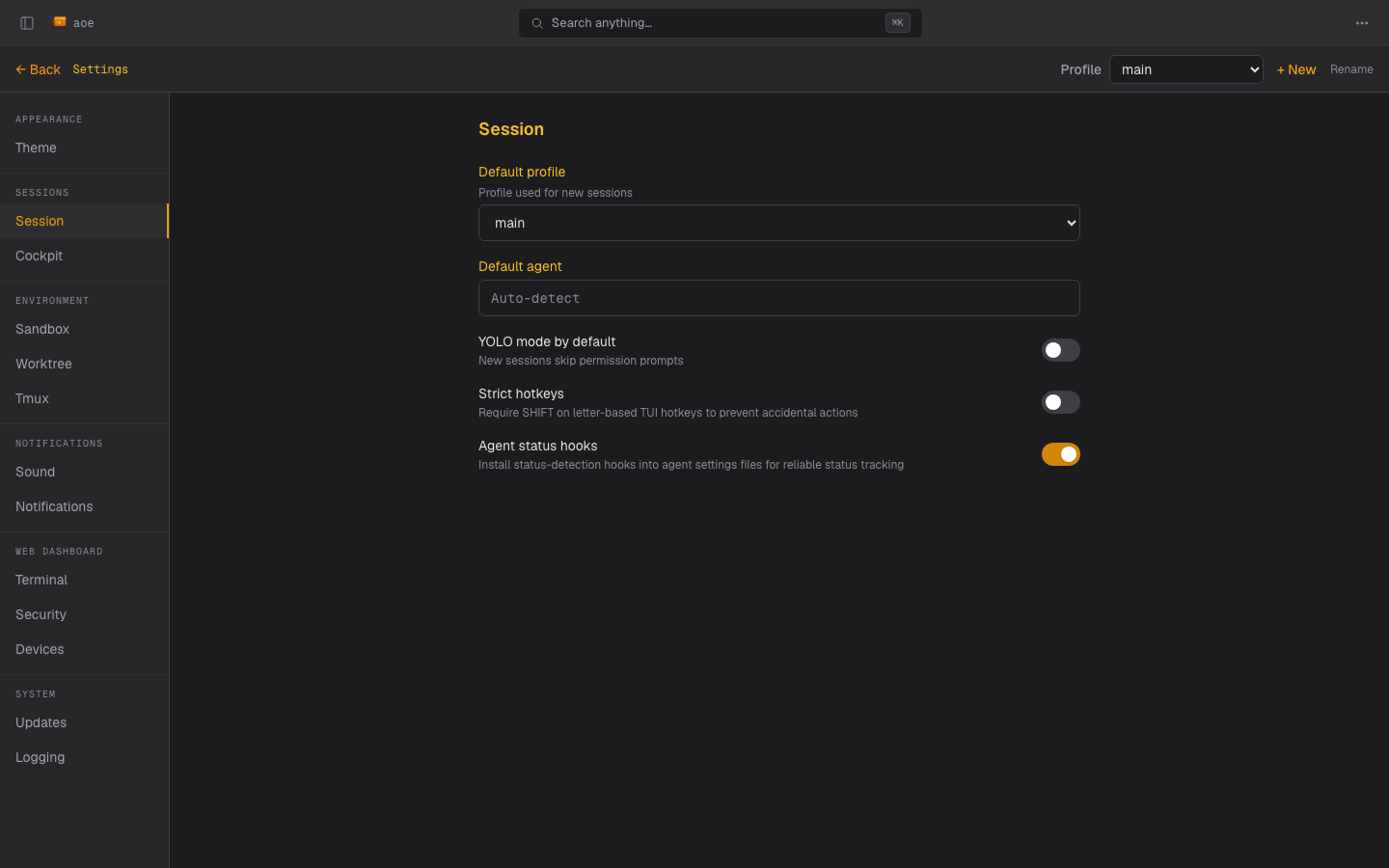
Settings are grouped into Dashboard (Theme, Notifications for web push, Terminal, Panels, Diff, Devices, Security), Sessions (Profiles, session defaults, Structured view, MCP servers, Skills), Environment (Sandbox, Worktree, Tmux, Systemd, Sound), and System (Updates, Telemetry, Logging, Logs, Plugins). On a phone, Settings opens on this grouped list. The panel is generated from the same settings schema as the TUI, so a field declared once appears on both and they cannot drift; fields only the TUI reads sit under a Terminal UI fold. The host environment list is the one config knob the dashboard does not surface.
The profile picker, shown beside the title of tabs that hold profile-overridable fields, scopes which profile you are editing; global settings apply where a profile does not override a field. The Profiles tab (/settings/profiles) creates, renames, deletes, and sets the default profile, and its Edit configuration buttons deep-link into a tab scoped to that profile. Lifecycle hooks are shown read-only with their source, since hooks run arbitrary shell commands; the same applies to agent-command and environment fields. Creating, deleting, or renaming a profile, and saving global settings, are step-up actions.
Logs (System) shows the last 500 lines of the log file, with a Download button. Tokens, passphrases, passwords, secrets, API keys, and authorization and cookie values are redacted on the server before they reach the browser; other log content is shown as written. The tab is hidden on read-only servers.
Conversation display (Sessions > Structured view) sets the base font size of the structured-view transcript, separately for mobile and desktop, from 6px to 28px with a 14px default. Prose, headings, lists, tables, and code all scale from it. The mobile value applies on a coarse pointer under 768px, switching live as you resize or rotate. The size is relative to your browser’s own font setting, so it stacks with zoom and accessibility preferences. Both values are dashboard preferences stored with your web settings, not agent config, so they follow you across devices and never appear in config.toml.
On mobile
Below the md breakpoint the dashboard shows one full-viewport pane. The right-panel button swaps the main pane between Agent terminal, Paired terminal, and whichever panes the session allows: Sub agents in structured-view sessions, Diff and Files (hidden in CityHall mode), and plugin panes. A back chip returns to the agent terminal. Both terminals stay alive in the background, preserving scrollback and focus.
In a structured-view conversation, a tab at the top right and another just above the composer fold away the top bar and the composer independently, giving the transcript their height back; both tabs stay on screen while collapsed. Leaving the conversation shows the top bar again, since it is the only navigation the other views have.