Structured View Interface
The structured view renders in both the TUI and the web dashboard. This page covers how they differ, the keybinds, how the composer behaves on desktop and touch, and how the timeline keeps long turns readable. For setup, see Structured view.
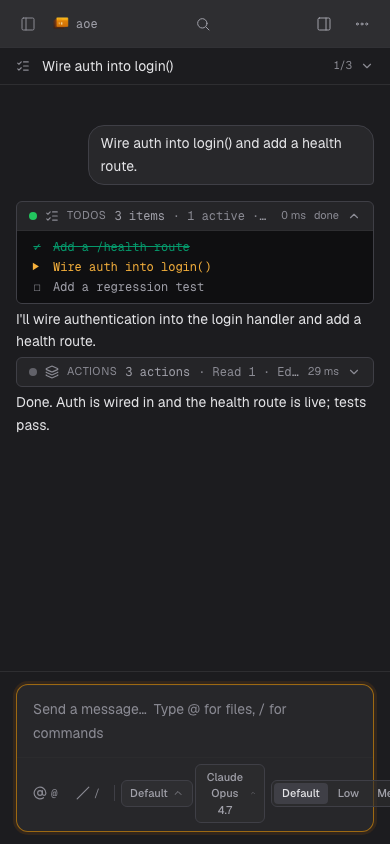
TUI versus web dashboard
Both surfaces consume the same aoe serve daemon over the same HTTP and WebSocket API, so the conversation log, pending approvals, and worker state stay in sync.
- Structured sessions show a
[structured]badge in the TUI session list, and Enter opens the native view. It needs a running daemon and says so, pointing ataoe serve --daemon,--daemon --remote, orAOE_DAEMON_URL; the TUI never starts one for you. - Terminal sessions work in both surfaces: the TUI attaches to the pane and the dashboard streams it (see Terminal view).
- Switching views keeps the worktree, files, and commits. Claude can resume its native transcript in terminal view only when AoE can bind the ACP ID to a shared native store. An explicit native-store assertion can name another store. An ACP ID alone is not store provenance: an unresolved or unshared store is refused before worker teardown. Switching back can reload the Claude transcript. Other agents start fresh under the new view.
- A healthy structured session shows Idle or Active in the session list, observed through the ACP event stream rather than tmux pane probing.
- The local TUI attaches to a same-host
--auth=passphrasedaemon without the passphrase exchange, since loopback callers are protected by the 0600 serve files. Adding--behind-proxywithdraws that carve-out, since a request from the proxy’s own loopback socket is otherwise indistinguishable from one it forwarded on behalf of a remote caller. In that case the TUI and everyaoe acp <verb>CLI command fall back to the same/api/loginhandshake the web dashboard uses, reading the daemon’s ownserve.passphrasefile to log in automatically and caching the resulting session (see Cross-machine attach for the remote-endpoint equivalent,AOE_DAEMON_PASSPHRASE).
TUI keybinds
The view opens with the composer ready. The transcript stays scrollable from the composer, a pending authorization opens a focused approval shelf above it, and the status line keeps the worker state and primary controls visible. The active session’s agent, directory, and permission mode sit in a compact card in the upper left; user turns use a › gutter and agent replies a • gutter, so only modal decisions get a full-width border.
| Focus | Key | Action |
|---|---|---|
| Composer | Enter |
Send, or queue if the session cannot accept it yet |
| Composer | Shift+Enter |
Insert a newline |
| Composer | @ |
Open the file-mention picker; keep typing to filter |
| Composer | / |
Open the slash-command picker (start of an empty line) |
| Composer | Enter (empty) |
Retry draining the queue when idle |
| Composer | ↑ / ↓ |
Recall queued prompts to edit (caret at start), or move the picker highlight |
| Composer | Ctrl+n / Ctrl+p |
Move the picker highlight |
| Composer | Enter / Tab |
Insert the highlighted command or file |
| Composer | Esc |
Dismiss the picker, or return focus to the transcript |
| Transcript | j / k, arrows |
Scroll a line |
| Transcript | PgDn / PgUp |
Scroll ten lines |
| Transcript | g / G |
Jump to top / bottom |
| Transcript | i |
Focus the composer |
| Transcript | Tab |
Cycle to a pending approval card |
| Transcript | m |
Open the permission-mode picker |
| Transcript | a |
Answer a pending question (single-select forms) |
| Transcript | s / c |
Skip / cancel a pending question |
| Transcript | o |
Open this session in the web dashboard |
| Transcript | Esc |
Close the structured view |
| Approval | a / Shift+A / d |
Allow once / allow always / deny |
| Approval | Esc |
Stop the in-flight turn |
| Any | Ctrl+C |
Cancel the in-flight prompt |
| Any | Ctrl+O |
Open the session in the web dashboard |
| Any | Ctrl+X |
Clear every queued prompt |
Approval keys resolve only while the approval card has focus, so typing “always allow” into the composer can never approve a tool.
The slash-command picker appears once the composer holds a single-word slash query and the agent has advertised commands; Enter or Tab inserts /{command} without sending, so you can add arguments. A query matching no command is left alone and sent verbatim. The file-mention picker (@) lists the session’s workspace files, fetched once per session, and inserts the choice as :file[<path>], matching what the web composer sends.
What the TUI renders
Successful tool calls collapse to one line with their target and, for edits, added and removed line counts; running and failed calls stay expanded. The latest plan is pinned as a single progress summary rather than a new checklist per update. Agent messages render as styled markdown using text attributes only (bold, italic, dim), so they track your theme; syntax highlighting is deferred, and o opens the dashboard for full fidelity.
Tool cards
Tool calls render per kind rather than as one generic line: an edit or write shows the path and a compact diff in your theme’s diff colors, an execute shows the command and a bounded output preview, a read shows the path and a content preview, a delete shows the target. Diffs cap at 20 changed lines and previews at 12, with a “+N more” footer. A single patch touching several files shows each file in one card. In the dashboard, Claude’s harness tools get dedicated cards too (a tool search shows its query, a background monitor its description and command, a task stop the stopped task id). Other kinds fall back to a generic one-liner.
When a tool returns images, audio, or resources they render inline on the card (a textual placeholder in the TUI), and anything that cannot be shown degrades to a labelled placeholder rather than being dropped.
In the dashboard, links in transcript messages open in a new tab. Local path:line references are the exception: clicking one opens that file in the in-app viewer and keeps you on the session, unless the file lives outside the session’s repo, which shows a brief notice.
Composer
On desktop, Enter sends and Shift+Enter inserts a newline, in both surfaces. On touch-primary devices plain Enter inserts a newline and the Send button is the only way to dispatch, avoiding accidental partial sends; a tablet with a hardware keyboard keeps the desktop convention. On-screen dictation commits into the composer correctly.
Tapping anywhere in the transcript focuses the composer and raises the soft keyboard, while tapping a control inside a message still does its own thing. While the composer is folded away (see the dashboard guide) it cannot be typed into or focused, and tapping the transcript does nothing.
Attachments
The web composer sends attachments alongside the prompt when the active agent advertises support: the paperclip button, Cmd/Ctrl+V to paste an image, or drag and drop. Staged attachments show as removable chips, images with a thumbnail, and a prompt can be attachment-only.
The paperclip is disabled with a tooltip when the agent accepts no attachments, and the picker offers only the kinds it does accept. claude-agent-acp advertises images and embedded resources; others vary. The server re-checks the capability and enforces size, count, and MIME limits, so an unsupported attachment comes back as an error rather than reaching the agent.
Attachments persist with the transcript and queue alongside the prompt text, so sending one mid-turn parks the whole message until the session resumes. A full page reload drops a queued row carrying an attachment (reattach and resend). Audio and embedded resources are stored and sent but render as a labelled chip.
Queued prompts
The composer keeps messages the session cannot accept yet:
- Mid-turn follow-up. With a steerable agent (Claude Code on a supported
claude-agent-acp, see Troubleshooting) your message goes into the running turn, the same as typing ahead in the CLI, so nothing is queued andaoe acp promptworks mid-turn too. Without steering, while the agent compacts, or for a/clearor/compactcommand, the text lands in the Queued (N) strip and drains when the agent reportsStopped, joined into one combined prompt (a clear or compact command fires alone so it keeps its meaning). - Inactive session. While the WebSocket is reconnecting or the worker is stopped, submissions are still accepted and parked, and drain once both are back.
- Idle-dormant session. The POST itself is the wake path: the server respawns the worker, holds the request until it is ready, then delivers it.
Web queue entries persist in per-origin local storage, so a reload keeps them across the reconnect window; there is no server-side durability. The TUI queue is in-memory only and does not survive leaving the view.
Click a queued row to edit it inline, or, with the composer empty and the caret at the start, press ↑ to pull the most recent queued prompt back in; ↑ and ↓ walk the queue and restore your draft once you step past the newest. A banner (TUI: the composer border title) reads Editing queued message N of M while you recall, Esc abandons the edit, and sending updates that entry in place rather than queueing a duplicate.
Stopping a turn
While a turn runs, the composer shows Stop, which sends a graceful cancel; the spinner switches to Stopping… with a countdown to the escalation deadline. Some tools (a monitor or until loop, a long blocking command) do not honor a graceful cancel, and a Force stop button then appears beside the spinner. Clicking Stop a second time always escalates too, without waiting for the server to confirm the first cancel, so the button is always a working escape.
Force stop restarts the worker and kills the whole command tree. The agent resumes from its saved transcript on the next prompt, but partial output from the tool in flight is lost, so reach for it only when a turn is genuinely wedged.
Timeline card grouping
Two kinds of runs fold into collapsible cards:
- Silent tool work: three or more consecutive tool calls with no agent text between them collapse into an “actions” card of at most ten; a longer run splits into several cards.
- Consecutive TodoWrite updates: three or more back-to-back todo updates fold into one card titled “updated N times”, showing the latest list while collapsed.
Folding only fires on an unbroken run of the same shape, and the threshold is three, so a status update between two real actions stays inline as its own card.
The Compact tools toggle at the top of the transcript collapses every tool card to its header for scanning, and new cards arrive collapsed while it is on. The agent’s narration stays visible, errored cards stay open, and you can still expand a single card. It is a per-browser preference.